Showing posts with label Mint. Show all posts

Friday, 26 September 2014

Stream Your Files Over The House

Hi this is a kind of tutorial, some hardware, software is need for this "kind of tutorial".


      To begin let me tell about my set up, two box running Linux Mint 17 64bit, one on my living room and the other on my small room they are connected directly to my Thomson  wi-fi router with RJ45 cables with help of TP-LINK AV200+, on the living room side, together this two machines have 7 TB of HDD.

Things that you need for this "kind of tutorial"

            Linux Mint 17 or any other based in Ubuntu/Debian
            OpenSSH Client (install by default in Mint)
            OpenSSH Server
            XBMC 13.2            (Kodi from 14.0)
  
Ok I have this new board that was 8 Sata ports so I only need 1 box running and something like Raspberry  Py with Raspbian on the living room to stream to my TV.

Stream Your Files Over The House

 So I have this idea that I could stream any file over the house with a tablet or tablets, and this idea is kind of multi room stream with mix off hardware.
 what I test and is working..
             
..my two box running Linux Mint 17 with XBMC on each, but this is not necessary if you have one in on location and stream all your files to like the Py, only need to configure the XBMC to get the files from that machine and the same this for the tablet/tablets.

 Tablet 

My tablet that I test and is working ONDA V989 and the XBMC for android.

Mint 17 up and running open terminal and type
sudo apt-get install openssh-server
will ask for password


if this is the machine that you will have your files stored then go to network settings and write the IP Address something like 192.168.1.99


if you have other machine like me, then on that machine open Nemo..


when you make a connection to server form the client side, you only need
ex: /media/you name/
in my case the folder xbmc-hd is a 3 TB drive only for hd content, I have this set to
ex: /media/ricardo/xbmc-hd on XBMC client 
 this client is the box on my living room and tablet.

XBMC

 xbmc grate software open source and do everything as media center , setting up for remote stream..


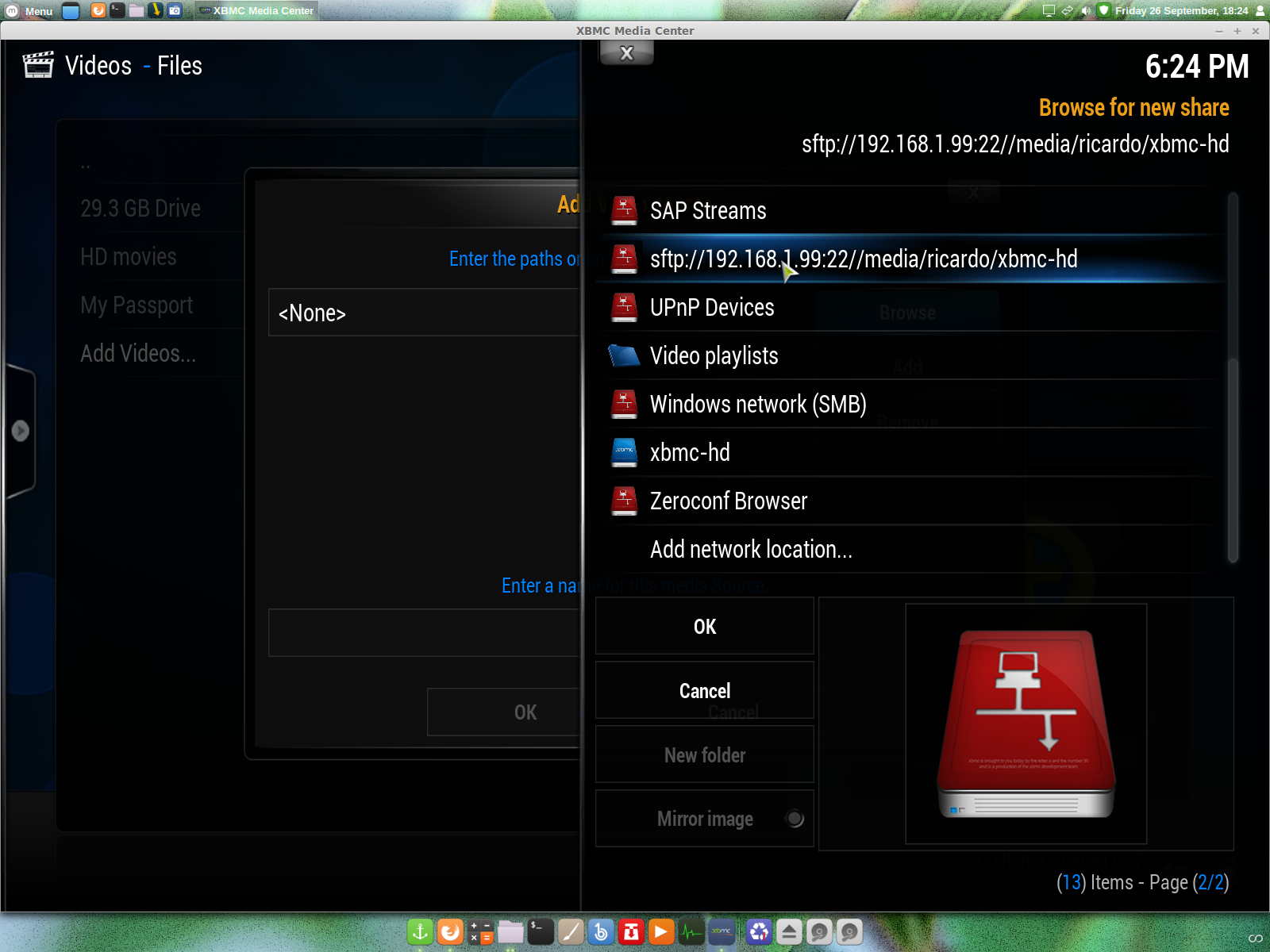


you can see this error "could not connect to network server", your pc IP Address is wrong..


after all settings correctly applied it should look like this, however none of the files you see are there, this is Linux and you can make a text file ending in .mkv and add the cover!

PS: Please don't use this kind of tutorial for illegal things.  

All links that you see on this kind of tutorial go to original web pages and I don't my self scam people, thanks for read and stop by.

Thursday, 25 September 2014

How to install AMD driver 14.201.1008 in Mint 17!

Hi, this is very easy to do from Mint 17 but first let me tell a bit about my PC.

     Board - Gigabyte F2A88X-D3H
     CPU/APU - A4-6300
     Memory - Kingston HyperX 4 GB
     HDD - old from my Sony that the graphics broken will update to SSD.

My system info..


you can see Linux Mint 17
kernel - 3.13.0.24
AMD A4-6300
graphics HD8370D

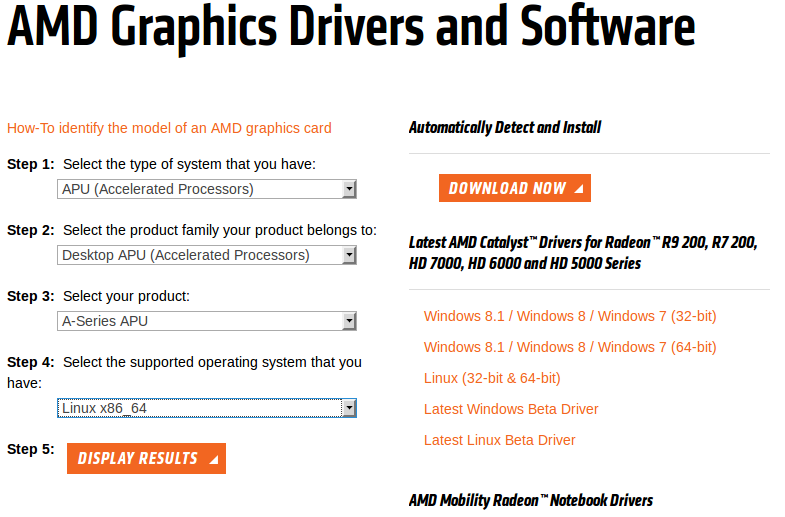
Test and working with this hardware and kernel, if you have the same kernel and APU then go to the AMD website and download the driver 14.201.1008


and


and


after the download finish go to where you save it and extract,


you will have this folder fglrx-14.201.1008, inside you have ""amd-driver-installer-14.201.1008-x86.x86_64.run"" if click in that file you can run from terminal..

this now will run from terminal will ask for password and install..


reboot and then run in terminal the command
     ""fglrxinfo""
and you will have the same output of my snapshot.

    Mesa "error", underscan, Troubleshooting, Enabling Video Hardware Acceleration and more
refer to
            help.ubuntu.com

PS: if you have other fglrx driver on your system please remove with
   
sudo apt-get remove --purge fglrx fglrx-amdcccle fglrx-updates fglrx-amdcccle-updates
Thanks for take the time to read this post R Monteiro.

Thursday, 31 October 2013

Get back Boot splash after install of Nvidia Driver.

My boot was a text displaying "Linux Mint 15" with 4 dot's on bottom and Nvidia logo after. I try install custom boot splash's but after reboot the same was displaying. The solution came after many attempts. My graphics Nvidia  Geforce 8400M GT, driver 310.44 linux 64 bit. This as taken from askubuntu.com last post...

First install hwinfo by running the following command:
sudo apt-get install v86d hwinfo
After the installation run the following command and note down the highest resolution:
sudo hwinfo --framebuffer
For me this was Mode 0x0361: 1280x800 (+5120), 24 bits, next edit the following file:
gksu gedit /etc/default/grub
This will open the GRUB config file, we now look for GRUB_CMDLINE_LINUX_DEFAULT="quiet splash" and change it with the following, change your resolution with mine and also add the color depth (for me 24 could be 16 or 32).
GRUB_CMDLINE_LINUX_DEFAULT="quiet splash nomodeset video=uvesafb:mode_option=1280x800-24,mtrr=3,scroll=ywrap"
Then find the following line (uncomment if needed) and change your resolution again, note that you don't include the color depth:
GRUB_GFXMODE=1280x800
Save and exit, next edit the following file:
gksu gedit /etc/initramfs-tools/modules
Scroll to the end of the file and add the following line, again add your resolution and the colordepth like you did before:
uvesafb mode_option=1280x800-24 mtrr=3 scroll=ywrap
Then in the terminal type the following commands and then reboot:
echo FRAMEBUFFER=y | sudo tee /etc/initramfs-tools/conf.d/splash
sudo update-grub
sudo update-initramfs -u
For me this fixed the problem, I tried all the other suggestions and scripts, none of them worked but this does, good luck!
To remove the Nvidia splash logo add "NoLogo" to xorg.conf, by
sudo gedit /etc/X11/xorg.conf

Section "Device"
     Option "NoLogo" "True"
Then you can install super-boot-manager to managing the boot splash.
My boot splash

Enriki-theme

I hope this help.

Thursday, 17 October 2013

Get back login sound in Linux Mint 15

For me this all ways been difficult to get back the login sound, after many attempts I fund this post on "community.linuxmint.com" and I get back my login sound.
          The process is by adding a command to the startup  applications...
Menu/Preferences/Startup Applications
or
Menu/ search...
if you don't have the Gnome Login Sound you have to add this by clicking on Add button.
 In there you have 
                              Name:
                              Command:
                              Comment:
for Name: add  GNOME Login Sound
for Command: add  paplay /usr/share/sounds/LinuxMint/stereo/desktop-login.ogg
for Comment: add  Plays a sound whenever you log in
the Comment field can be blank but the other two are important.
You can test this on terminal by run the Command: above, but this give the opportunity to us to add your own custom login sound, I hope this was help full to you like was to me.

Saturday, 28 September 2013

My Linux Mint 15 with Docky

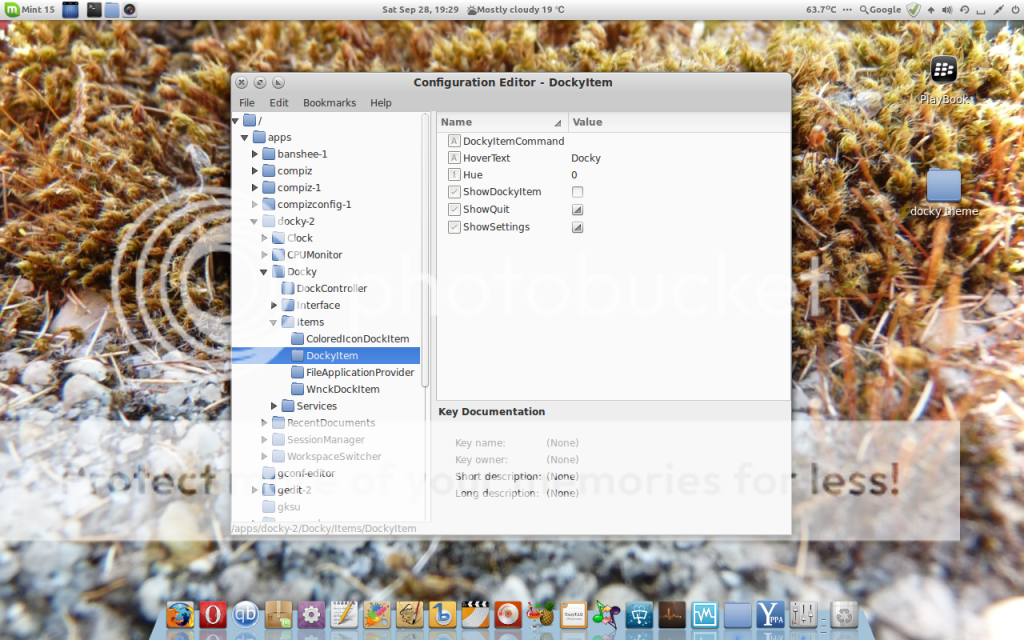
Hi I have finish my Docky theme so this post is about my desktop Mint Cinnamon and Docky.
Docky theme can be download from Google Drive is a .tar file use Docky settings to install new themes, I did this Docky theme to go with Fiaence-Azur icon theme, Docky is the latest form PPA.
The badge,
The menu settings,
The wallpaper at DeviantART,
to remove the Docky icon from the dock, go to Menu, System tools,  Configuration Editor (gconf-editor) maybe you need install  gconf-editor, on the
Configuration Editor, click on apps, Docky, Items, DockyItem and untick
ShowDockyItem.
Restart Docky.
I hope this was informative.

Linux Mint
Docky PPA
gconf-editor
My wallpaper

Saturday, 10 August 2013

Share files through wifi - Linux Mint 15 and Blackberry Playbook

Today I have plug my Playbook to my laptop and nothing happen, so google and ask how to do this, in a few minutes I had both sync.
As reference I used this post,
http://forums.linuxmint.com/viewtopic.php?f=195&t=89977
and this,
http://gnuman.com/wi-fi-file-sharing-between-blackberry-playbook-and-linux/
but then I have this problem that I forget easily things, so I made a script that is on my desktop like a icon for quick sync.
    
      How to make this script? 
First open your text editor and type
              nautilus smb://192.168.1.64/media
save this as all files with extension "sh", ( mine is Playbook.sh ) this is not yet executable for that right click on file and go to properties and open permissions and enable " Allow executing file as program" that it. Maybe this will be helpful to you at it was for me. Sorry no pictures to help describe.

Sunday, 4 March 2012

My new OS Linux Mint 12 KDE

Finally I've finish all the jobs and Install the new Linux Mint 12 and for the next few months I will use KDE desktop, Linux is getting better all the time and this KDE desktop is really good, in the last post I've publish a wallpaper thet I made for this desktop but you can use a different wallpaper in the virtual desktop, so some screenshots of this OS...
virtual desktop 1
virtual desktop 2 with my wallpaper @ http://azmo35.deviantart.com/art/simple-mirror-288036669
virtual desktop 3
virtual desktop 4
Mint menu alike Windows
drag applications to Plasma desktop,
but before you can use it give permissions,
you can resize the task bar,
widgets tool bar, to add widgets to you desktop or task bar,
tool box other way to add panel or widget,
Dolphin file manager,
easy to enable hidden files and folders click view and tick "show hidden files",
your home with hidden files and folders, now the look of some software,
Opera web browser maybe my favourite,
VLC media for now works better then my last OS,
GIMP a great tool,
Inkscape another great tool,
This is Linux right so no Itunes but Gtkpod for managing your ipod, like add, removing and shorting tags,
on my music files I like to use Easytag to add and remove tags and artwork,
Amarok the default music player, Banshee or Rhythmbox are also good players,
the software manager like in Windows "you wish", only in Linux you have software manager,
preview window not new but helps for quick lunch if you have many app's open.

    This is only a small preview of KDE desktop still many thing to change and talk about, but for now I will end with thanks to KDE, Linux Mint and to all in the back stage off Linux community.

http://www.linuxmint.com/

http://kde.org/

http://www.opera.com/

http://www.videolan.org/vlc/

http://www.gimp.org/

http://inkscape.org/

http://www.gtkpod.org/wiki/Home

http://easytag.sourceforge.net/

http://amarok.kde.org/